
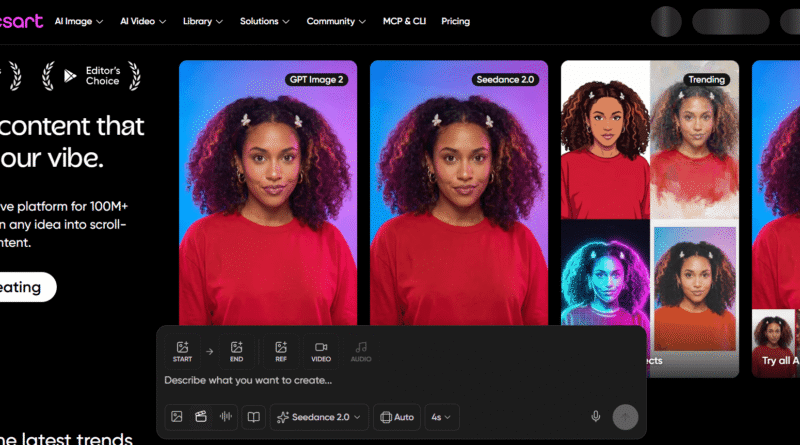
Best AI Graphic Design Tools in 2026 – Free, Paid, and Worth Your Time
I’m not a designer. Never trained as one. But like a lot of small business owners and solo creators, I still needed graphics — social posts, presentation slides, the occasional logo tweak — and hiring someone for every small task wasn’t realistic. So I’d open Canva, stare at a blank template for 20 minutes, and produce something that looked… fine. Not great. Fine.
AI changed that math completely, and the numbers back up what I’ve felt firsthand. 75% of designers now use AI tools, up significantly from just 35% in 2023, according to AIGA data. It’s not a niche experiment anymore — it’s become standard practice. And the businesses adopting it fastest aren’t the big agencies with deep pockets. Small businesses are actually 50% more likely to use AI for graphic design than large corporations, largely because of budget constraints, according to research published by WifiTalents.
Here’s the part that should make non-designers like me feel better: this shift isn’t replacing the need for good taste, it’s replacing the tedious parts. A Clutch.co study found that 88% of businesses now use AI design tools in some capacity, but only 18% say those tools have actually reduced their need for human designers. AI is handling the grunt work. Humans are still making the calls that matter.
I’ve spent real time with the tools that are actually worth using right now — testing them on logos, social graphics, presentations, and product mockups. Here’s the honest rundown.
What Does “AI for Graphic Design” Actually Mean?
It’s a broad category, so let’s break it down simply. Graphic design AI tools generally do one or more of these things:
- Generate images from text — describe what you want, get a visual back
- Automate layout and formatting — resize, align, and structure designs automatically
- Remove backgrounds, upscale, or retouch — tasks that used to require real Photoshop skill
- Suggest design variations — color palettes, fonts, layouts based on your brand or content
- Turn rough ideas into polished assets — sketches or text briefs become usable graphics
Some tools specialize in just one of these. The best ones combine several into a single, fast workflow — which is exactly why they’ve become so widely adopted across creative teams of every size.
Why So Many People Are Switching to AI Tools for Graphic Design
The data on this is more compelling than I expected when I first looked into it.
Time savings are real and measurable. 85% of marketers and creatives report saving roughly four hours per week thanks to generative AI tools, based on Canva’s own research. Four hours a week is half a workday — that’s not a marginal gain, that’s a meaningful chunk of your schedule back.
Speed is the number one reason people adopt it. 78% of professionals say AI tools significantly speed up their workflows, according to Figma’s design research. That tracks with my own experience — the difference between starting from a blank canvas and starting from an AI-generated draft is enormous.
It’s not just hype — most creative leaders see real output improvement. 77% of marketing and creative leaders agree that generative AI tools actively enhance their team’s creative output, per Canva’s 2025 research.
Confidence in visual communication is rising, even for non-designers. 63% of professionals believe experimenting with AI has improved their ability to communicate visually, regardless of their job title — which is essentially my own story, just backed by a statistic.
The honest caveat worth mentioning: quality concerns are still real. Only 58% of professionals say AI actually improves the quality of their work, even though 78% say it speeds things up, according to the same Figma data. Speed and quality aren’t automatically the same thing — you still need to bring judgment to the process.
How I Picked These Tools
I tested each tool across a consistent set of real tasks: generating a logo concept, building a social media post, creating a simple presentation slide, and editing/retouching an existing image. I paid attention to:
- Free plan usability — does it actually let you finish a real project, or just tease you?
- Output quality — does it look professional, or does it scream “AI made this”?
- Learning curve — can someone with zero design background use it confidently?
- Editing flexibility — can you tweak the AI output, or are you stuck with what you get?
- Speed — how long from idea to finished asset?
Quick Comparison: Best AI Tools for Graphic Design
| Tool | Best For | Free Plan | Skill Level Needed | Standout Feature |
| Canva Magic Studio | All-around design | ✅ Generous | Beginner | Design + AI in one place |
| Adobe Firefly | Professional-grade edits | ✅ Limited | Beginner–Intermediate | Integrates with Photoshop |
| Midjourney | High-quality AI art/imagery | ❌ Paid only | Beginner | Best visual quality |
| Microsoft Designer | Quick social graphics | ✅ Yes | Beginner | Fast, free, no learning curve |
| Looka | Logo and brand identity | ❌ Paid only | Beginner | Logo-specific AI |
| Recraft | Vector graphics & icons | ✅ Limited | Beginner–Intermediate | True vector output |
| Picsart AI | Quick photo editing | ✅ Yes | Beginner | Mobile-first editing |
| Uizard | UI/UX mockups | ✅ Limited | Beginner | Sketch-to-design |
| Khroma | Color palette generation | ✅ Free | Beginner | AI-trained to your taste |
| Designs.ai | Multi-format content | ✅ Limited | Beginner | Logo + video + design combo |
The Best AI Tools for Graphic Design — Honest Reviews
1. Canva Magic Studio
Best for: Pretty much everyone, especially non-designers
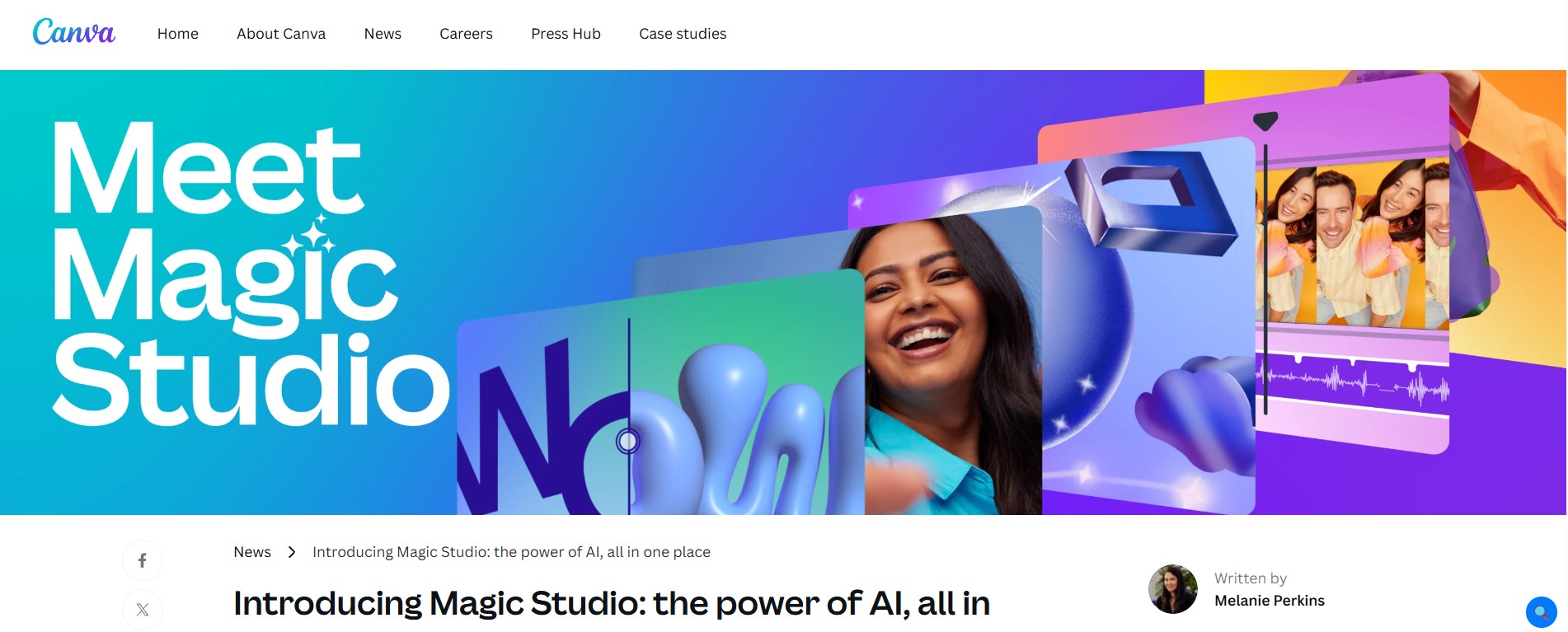
If you only try one tool from this list, make it this one. Canva was already the default design tool for people without formal training, and Magic Studio folded AI directly into that existing workflow rather than bolting it on as an afterthought.
Magic Design generates full layouts from a text prompt or an uploaded image. Magic Write handles caption and copy generation right next to your design. Background Remover, Magic Eraser, and Magic Expand handle the editing tasks that used to require real Photoshop knowledge. And because it’s all inside the same tool, you’re not exporting and re-importing between five different apps.
For small businesses and solo creators specifically, this consolidation matters. Generative AI features like Canva’s Magic Design automate complex tasks and attract new, non-designer users to the platform, which is exactly the audience this tool serves best.
What I actually use it for: Building Instagram carousels where design and copy come together in one pass, resizing the same design for five different platforms instantly, quick product mockups for client presentations.
The honest downside: The AI image generation, while good, isn’t quite at the quality level of dedicated tools like Midjourney. And the most powerful AI features sit behind the Pro subscription — the free plan gives you a real taste, but heavy users will want to upgrade.
Bottom line: The best free ai tools for graphic design starting point, hands down. If you’re new to AI design tools, start here before anything else.
2. Adobe Firefly
Best for: Anyone who already works in Photoshop or Adobe products
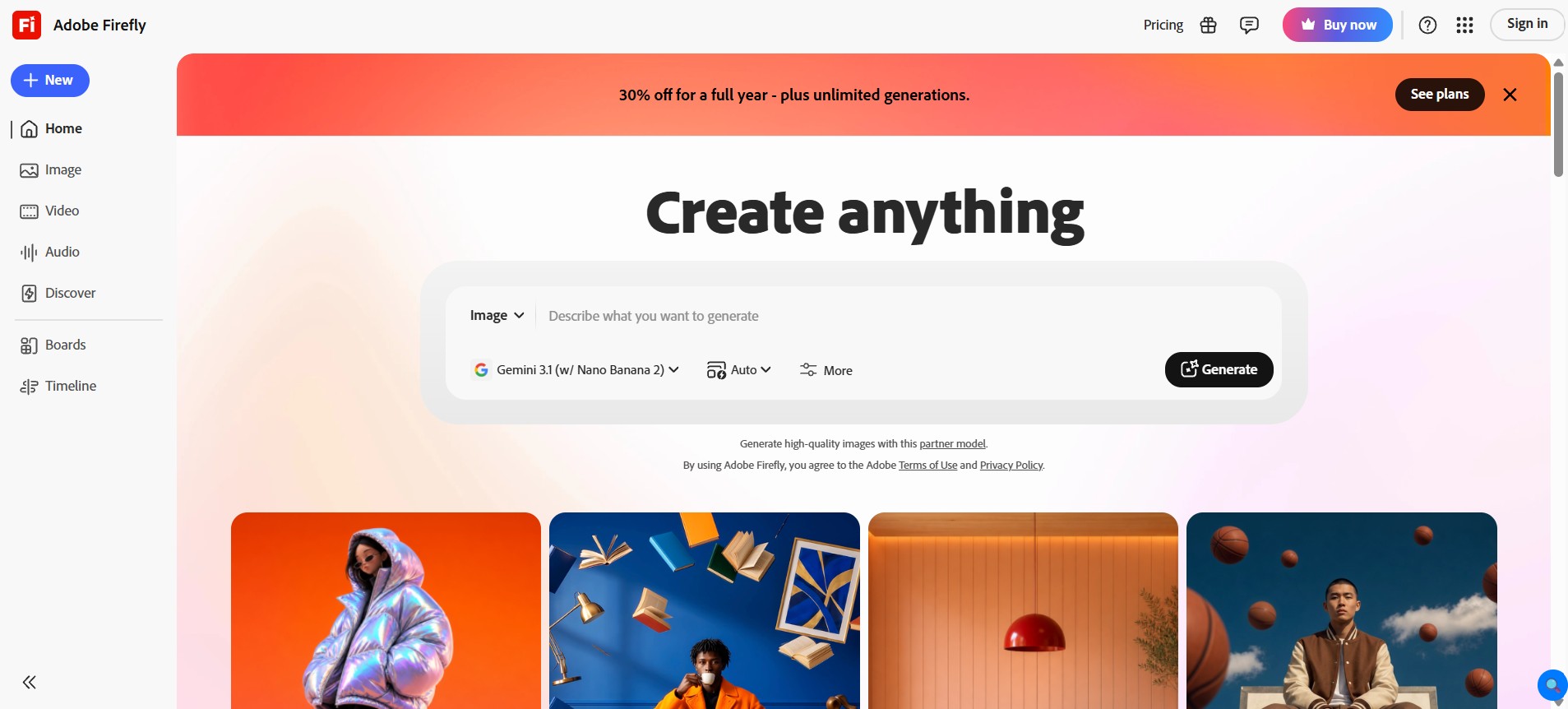
Adobe took its time entering the generative AI race compared to scrappier startups, but Firefly’s integration with the existing Adobe ecosystem is its real strength. This isn’t a separate tool you have to learn — it’s AI built directly into software millions of designers already use daily.
Generative Fill in Photoshop is the feature that genuinely changed how I edit images. Select an area, describe what you want there instead, and it blends seamlessly into the existing photo. Object removal that used to take careful manual cloning now takes seconds. Adobe recently integrated Google’s Gemini 2.5 Flash Image model into Adobe Express and Photoshop, letting designers prompt Firefly to create brand-ready graphics or modify complex scenes directly inside their normal workflow.
For anyone with existing Adobe skills, Firefly doesn’t ask you to abandon what you know — it makes what you already do faster.
What I actually use it for: Removing unwanted objects from product photos, generating background variations for the same subject, extending images beyond their original borders without visible seams.
The honest downside: If you’re not already in the Adobe ecosystem, the value proposition weakens significantly. The free tier is limited, and full access requires a Creative Cloud subscription, which isn’t cheap if design isn’t your full-time job.
Bottom line: Essential if you’re already an Adobe user. Not the entry point if you’re starting from zero.
3. Midjourney
Best for: When visual quality matters more than convenience
Midjourney remains the benchmark for pure image generation quality. If you need a striking visual — concept art, an illustration, a hero image for a campaign — and you’re willing to spend time refining prompts, nothing else on this list quite matches the output.
The learning curve is real, though. Midjourney runs through Discord, which feels unintuitive at first if you’ve never used it. You write a text prompt, get four image variations, and refine from there. It takes practice to learn how to phrase prompts that get you close to what’s in your head the first time.
What you get in return is genuinely impressive imagery — the kind of output that doesn’t look like it came from an AI tool unless someone tells you.
What I actually use it for: Generating concept art and mood imagery for client pitches, creating unique illustrations that don’t look like generic stock photography, exploring visual directions before committing to a final design.
The honest downside: There’s no free plan anymore — you’re paying from the start. And the Discord-based interface is a genuine barrier for people who just want a simple website to use. It’s also not built for layout or text-heavy design work; it’s an image generator, not a full design tool.
Bottom line: The gold standard for graphic design ai image quality. Worth the subscription if visual impact is your priority over convenience.
4. Microsoft Designer
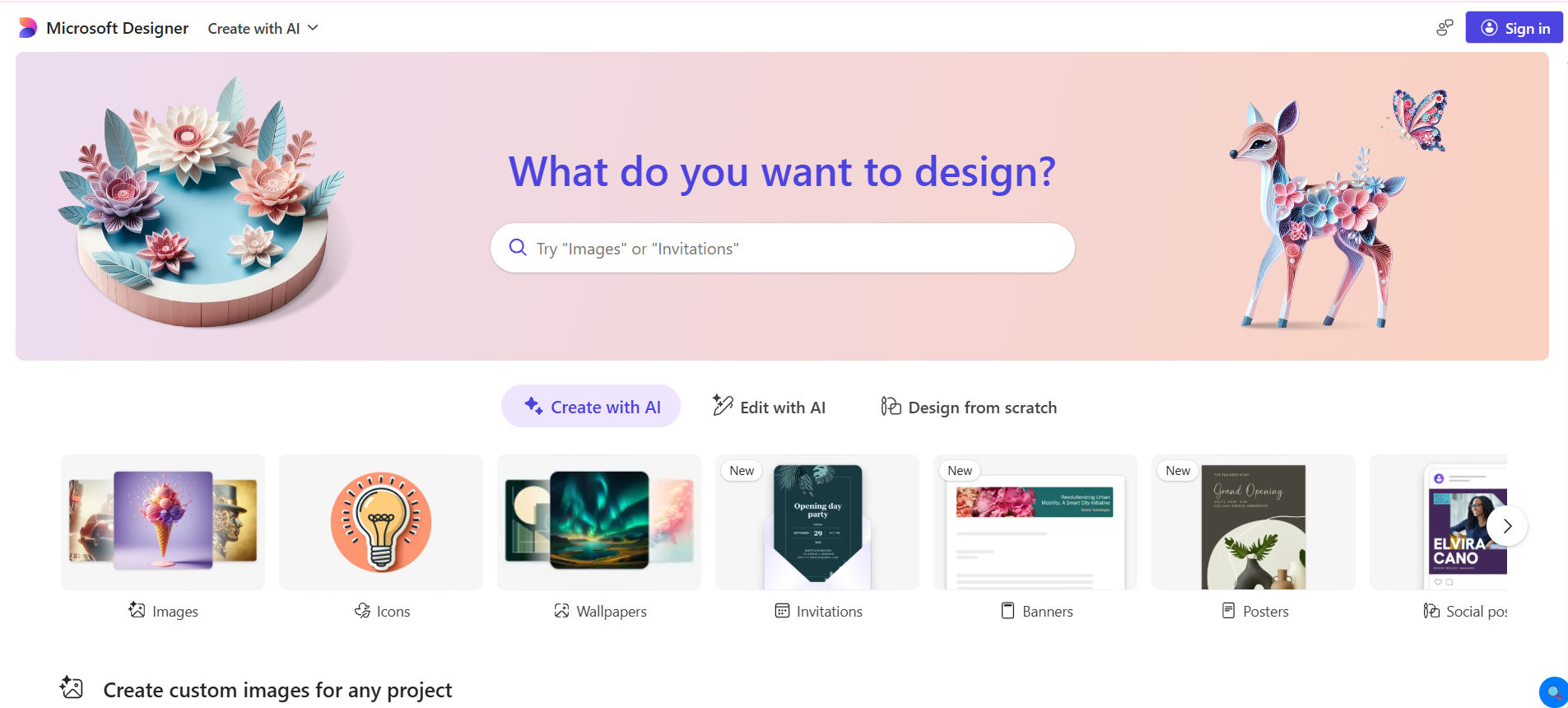
Best for: Fast, free social graphics with zero learning curve
Microsoft Designer is the tool I recommend to people who just need something simple and free, with no subscription pressure and no steep learning curve.
You describe what you want — “Instagram post announcing a summer sale, bright colors, beach theme” — and Designer generates several complete options in seconds, including layout, imagery, and text placement. It’s genuinely fast, and the quality is solid for everyday social content. It’s also completely free to use with a Microsoft account.
The simplicity is the whole point. There’s no steep onboarding, no confusing interface, no premium paywall blocking the core functionality.
What I actually use it for: Quick social media graphics when I don’t have time to open Canva and build something from scratch, generating multiple design options to compare side by side, basic flyer and announcement graphics.
The honest downside: The customization options are more limited than Canva or Adobe tools. If you want fine control over every element, you’ll outgrow Designer fairly quickly. It’s built for speed, not depth.
Bottom line: One of the best free ai graphic design tools for quick, no-fuss social content. Great for casual use; limiting for anything more complex.
5. Looka
Best for: Logo design and brand identity packages
Logos are one of those design tasks where getting it wrong is genuinely costly — it’s the visual anchor of your entire brand. Looka specializes specifically in this, and the specialization shows in the output quality.
You answer a few questions about your business, your style preferences, and your industry, and Looka generates dozens of logo concepts to choose from. From there, you can adjust colors, fonts, and layouts until something feels right. It then builds out a full brand kit — business cards, social media templates, brand guidelines — all matching the chosen logo.
For small businesses that need a professional-looking brand identity without hiring a branding agency, this is one of the more genuinely useful specialized AI tools available.
What I actually use it for: Generating initial logo concepts to react to and refine, building consistent brand assets across multiple platforms quickly, getting a starting point for branding projects that would otherwise require a designer.
The honest downside: No free plan — you pay once you find a logo concept you want to download in usable formats. And because the AI is working from templates and patterns, a sharp eye can sometimes spot similarities to other AI-generated logos. For a business that wants a truly unique mark, a human designer is still worth considering.
Bottom line: Best specialized tool for fast, professional-looking logo and brand identity creation on a budget.
6. Recraft
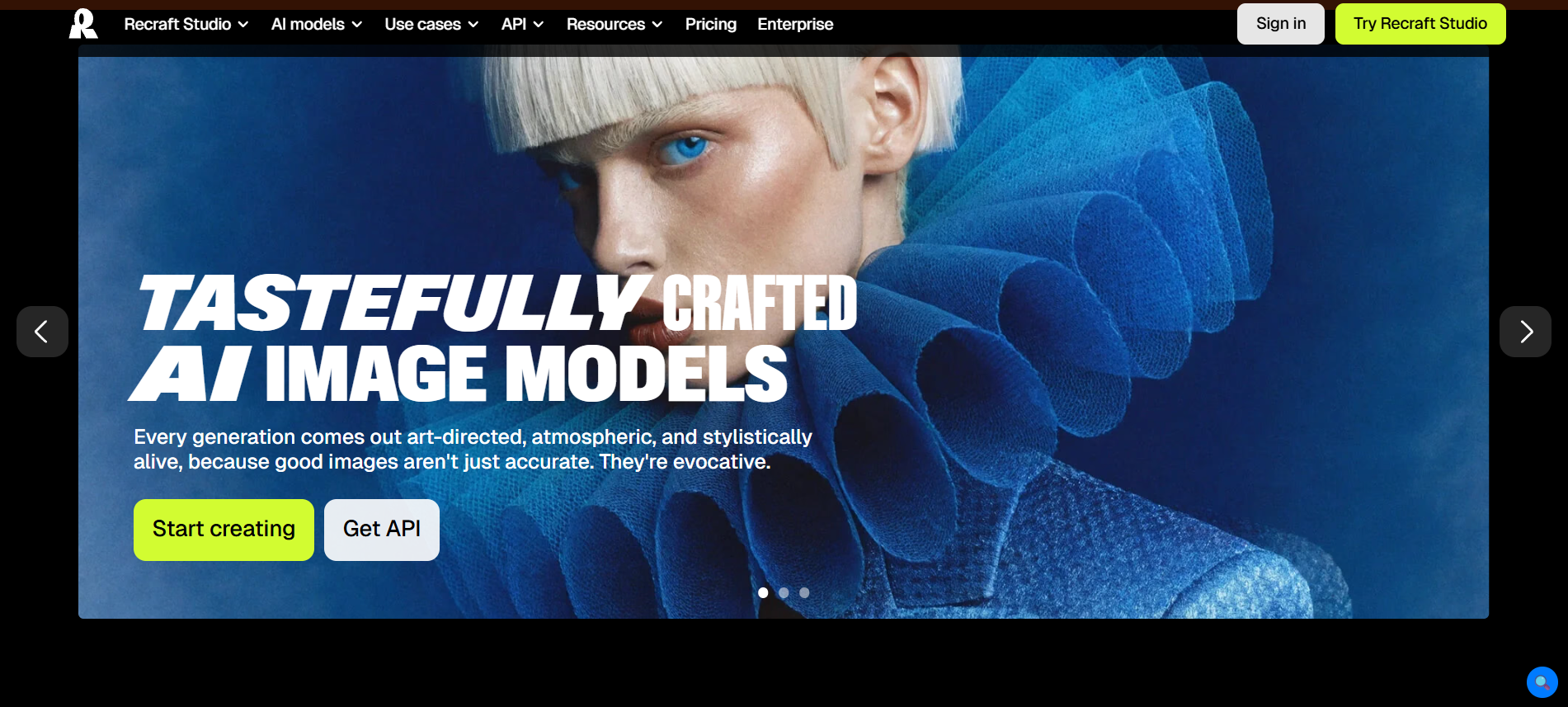
Best for: Vector graphics and icons that need to scale cleanly
Most AI image generators produce raster images — pixels that get blurry when you scale them up. Recraft is one of the few tools that generates true vector graphics, which means clean lines and infinite scalability without quality loss.
That distinction matters more than it sounds. If you need icons, illustrations, or graphics that’ll be used across different sizes — a small app icon and a large banner from the same source file — vector output is genuinely important. AI vectorization tools can now convert raster images to vectors with around 95% accuracy compared to manual tracing, and Recraft’s native vector generation builds on that same underlying capability.
The style consistency across a generated set is also notably strong — if you need a matching icon set, Recraft keeps the visual language consistent across multiple generations.
What I actually use it for: Generating icon sets for apps or websites, creating illustrations that need to work at multiple sizes, producing vector assets I can hand off to a developer without quality concerns.
The honest downside: The free plan is fairly limited in generations per month. And the interface, while functional, isn’t as polished or beginner-friendly as Canva. It’s a more technical tool aimed at people who understand what vector graphics actually are.
Bottom line: The best ai for graphic design work that needs to scale cleanly — icons, logos, illustrations used across multiple sizes.
7. Picsart AI
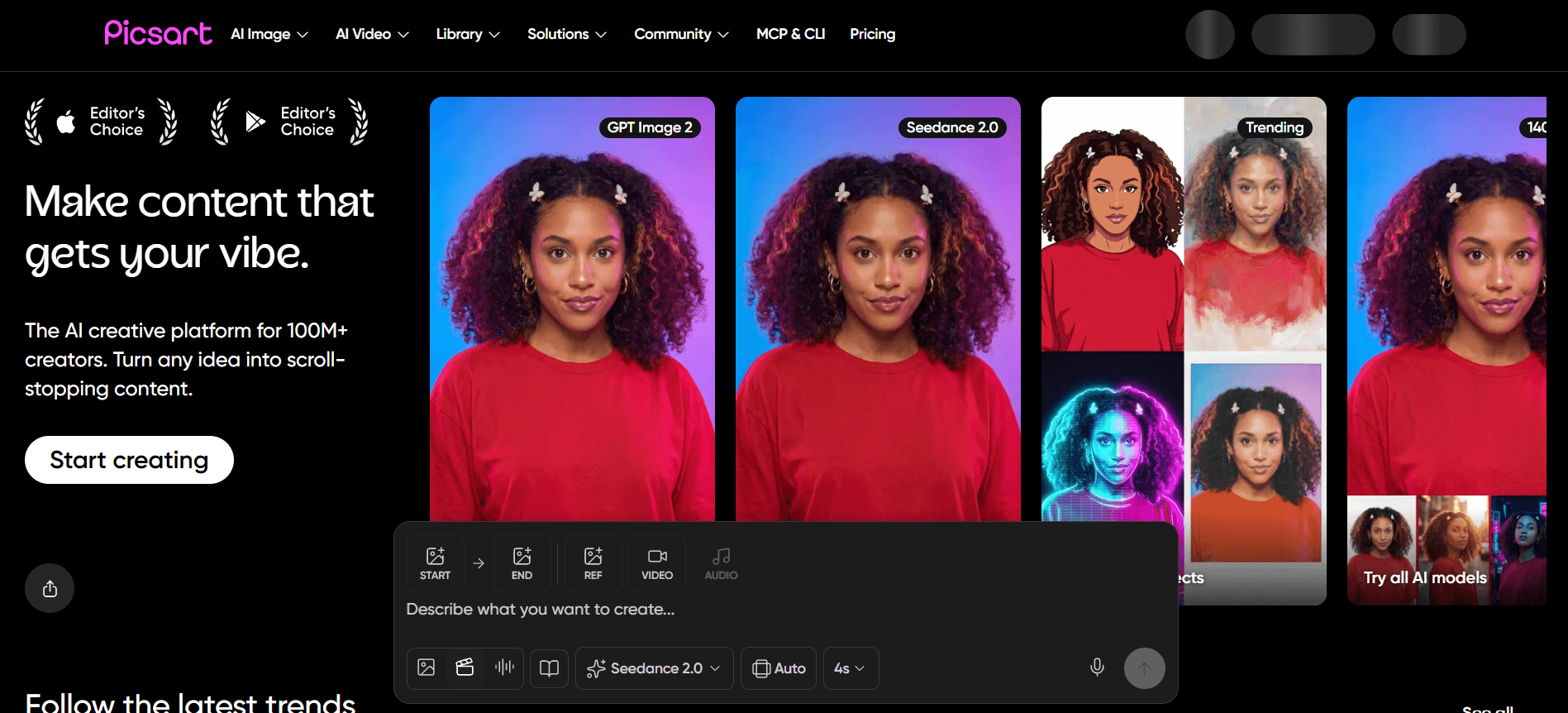
Best for: Quick photo editing, especially on mobile
Picsart has built a strong reputation as the mobile-first AI editing tool, and that focus shows in how smoothly it handles on-the-go editing tasks.
Background removal, object removal, AI-powered retouching, and style transfers all work well directly from your phone. For small business owners or creators who need to edit a product photo or touch up an image without sitting down at a desktop, the mobile experience here is genuinely strong — better than most competitors that clearly designed for desktop first and ported to mobile as an afterthought.
The free plan covers the core editing tools well, with watermarks or limits on the more advanced AI features.
What I actually use it for: Quick background removal on product photos shot with my phone, touching up images before posting to social media, removing unwanted objects from photos without opening a laptop.
The honest downside: It’s primarily a photo editing tool, not a full design platform. You won’t be building layouts or multi-element graphics here — that’s not what it’s built for. And several of the more advanced AI features push you toward the paid subscription.
Bottom line: One of the best free ai tools for graphic design when your need is fast, mobile photo editing rather than full layout design.
8. Uizard
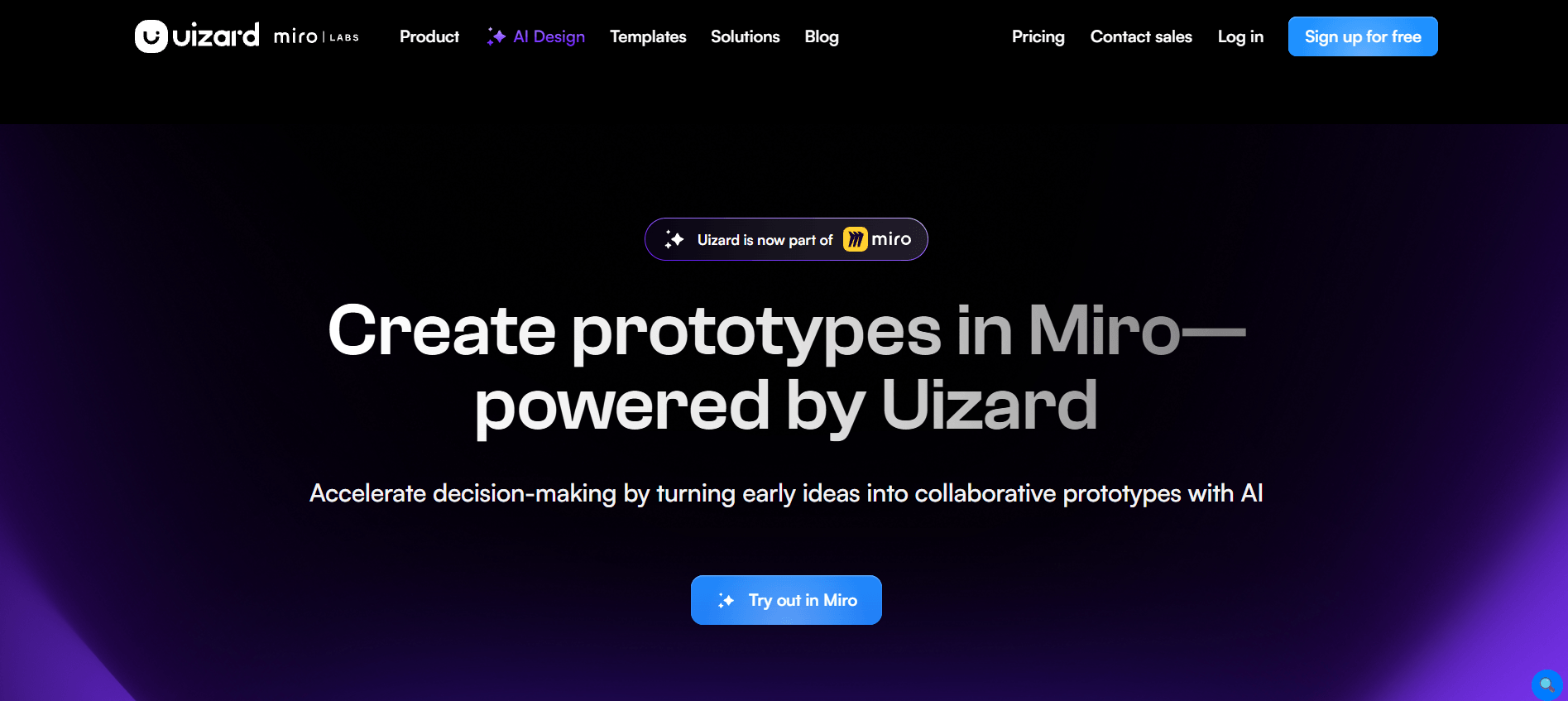
Best for: Turning sketches into UI/UX mockups
Uizard occupies a specific niche: it’s built for people designing app or website interfaces, not general graphic design. If that’s your need, it’s remarkably good at what it does.
The standout feature is sketch-to-design — you literally draw a rough wireframe by hand, take a photo of it, and Uizard converts it into a clean, digital UI mockup with appropriate components. For founders or product managers who can picture an interface but can’t design one, that’s a genuinely useful bridge.
You can also describe a screen in text and have Uizard generate a starting mockup, then refine from there with drag-and-drop editing.
What I actually use it for: Turning rough app wireframe sketches into something I can actually show a developer, quickly mocking up website layouts before committing to a full design, prototyping interface ideas without learning Figma from scratch.
The honest downside: This is a narrow specialty tool. If you need general graphic design — social posts, marketing materials, print design — Uizard isn’t built for that and you’ll need something else. The free plan is also fairly limited in projects and exports.
Bottom line: The right tool specifically for UI/UX mockups and app design concepts. Not a general-purpose graphic design tool.
9. Khroma
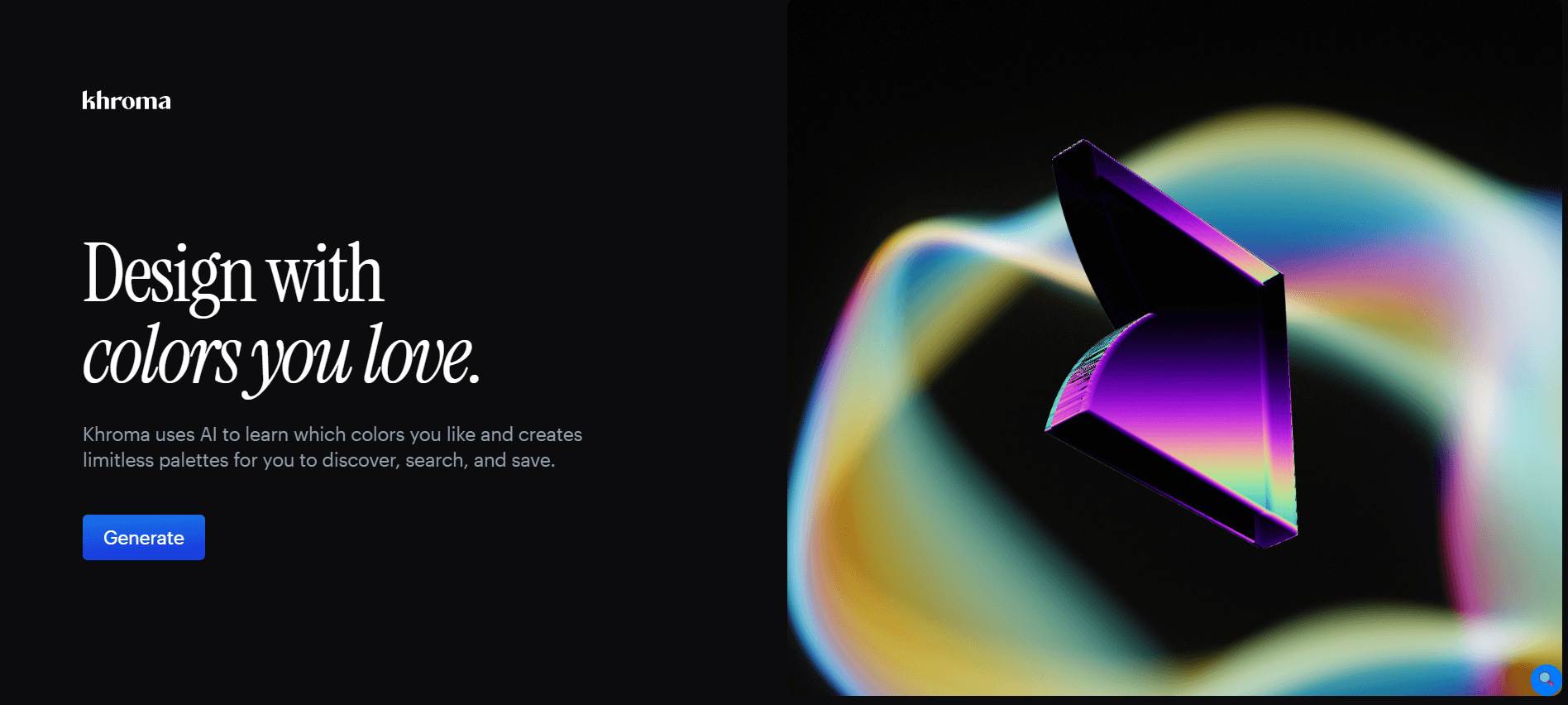
Best for: Generating color palettes that actually match your taste
Color choice matters more than most people give it credit for. According to a 2025 Adobe survey, half of customers admit they’ve chosen a brand based primarily on color — which means getting your palette right isn’t a minor detail, it’s a real business decision.
Khroma is a focused tool that does one thing well: it generates color palettes trained on your specific preferences. You select colors you like from a set of options, and the AI learns your taste over time, generating an essentially infinite scroll of palettes that match your aesthetic rather than generic “color theory” suggestions.
It’s free, simple, and solves a genuinely common problem — staring at a color wheel with no idea where to start.
What I actually use it for: Finding color palettes for new branding projects, getting unstuck when a design feels visually flat, generating color combinations I wouldn’t have thought to pair myself.
The honest downside: It only does color. No layout, no image generation, no editing. You’ll be pairing this with another tool for the actual design work — Khroma is purely the color discovery layer.
Bottom line: A small, free, genuinely useful tool that solves one specific design problem really well.
10. Designs.ai
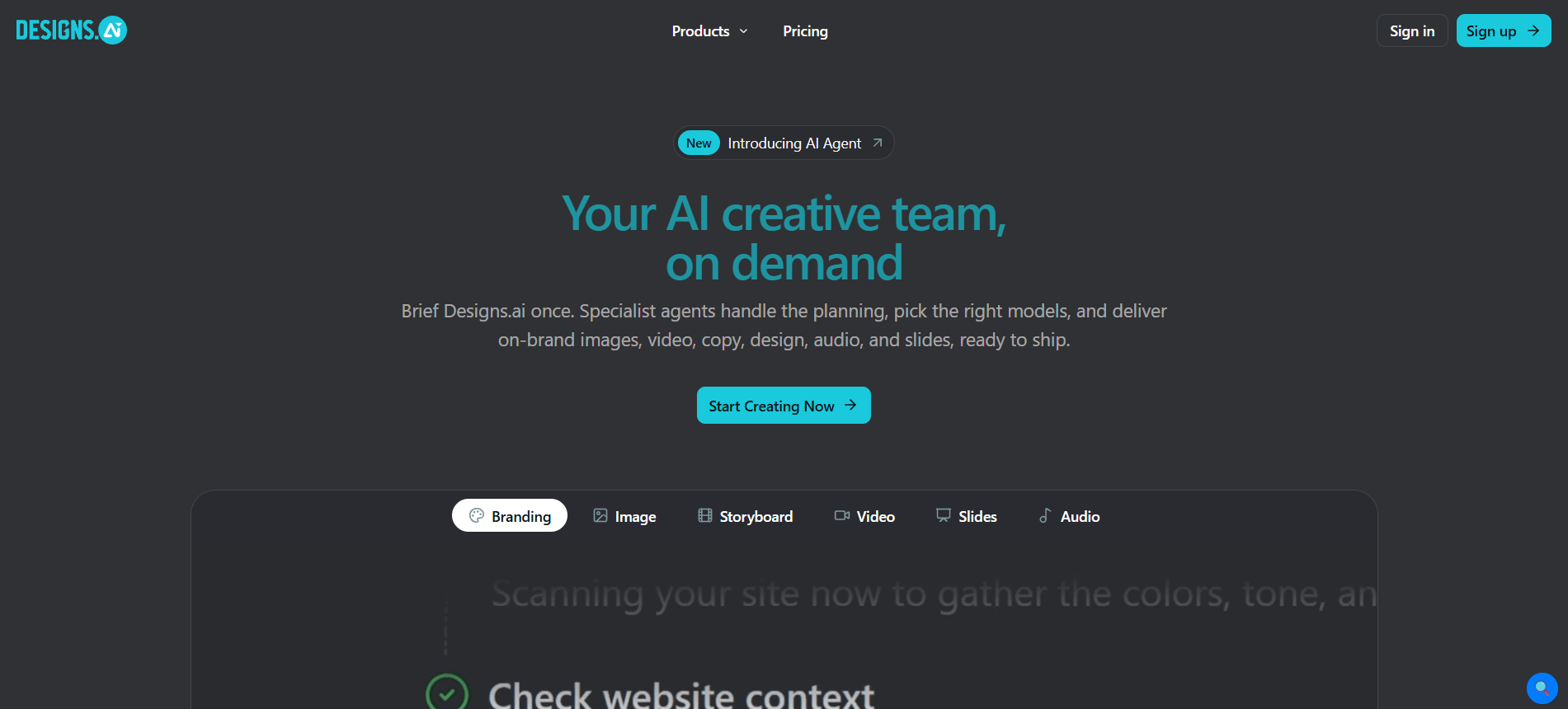
Best for: Small teams who want logo, video, and design tools in one subscription
Designs.ai bundles together several AI design tools under one roof — a logo maker, a design tool for social and marketing graphics, a video maker, and a voiceover generator. For small businesses that need multiple types of content but don’t want to manage five separate subscriptions, the bundling has real appeal.
The design quality across each tool is solid, if not best-in-class compared to the specialists on this list. What you’re paying for is convenience and consolidation rather than the single best output in any one category.
What I actually use it for: Generating a logo and matching social templates in one session, creating quick promotional videos to pair with static graphics, keeping brand consistency across formats without juggling multiple tools.
The honest downside: Because it spreads across multiple content types, no individual tool inside Designs.ai is quite as strong as the best dedicated option (Looka for logos, Canva for general design, etc). It’s a generalist bundle, and you’ll feel that if you compare any single feature head-to-head with a specialist tool.
Bottom line: Worth it if you want one subscription covering multiple content types. Less appealing if you’d rather use the single best tool in each category.
Frequently Asked Questions
1. What's the best free AI graphic design tool?
Canva Magic Studio, without much competition. The free plan is genuinely usable for real projects, the AI features cover most common design needs, and there's effectively no learning curve. Microsoft Designer is a strong free alternative if you specifically want fast social graphics with even less setup.
2. Are there good free AI tools for graphic design beyond Canva?
Yes. Microsoft Designer is completely free for quick social content. Khroma is free for color palette generation. Picsart has a solid free tier for photo editing. Recraft and Uizard both offer limited but usable free plans for vector work and UI mockups, respectively.
3. Is AI replacing graphic designers?
Based on the actual data, not really — at least not the strategic, taste-driven work. A Clutch.co study found 88% of businesses use AI design tools, but only 18% report it's reduced their need for human designers. What's changing is the type of work designers spend time on. One in three companies report AI has replaced only the simple, repetitive design tasks, while strategic and brand-level work continues to be led by people. The honest read: AI is taking over commodity production work — quick resizes, basic templates, simple edits. The work that requires judgment, brand understanding, and genuine creative direction is still firmly human territory.
4. Which AI tool is best for logo design specifically?
Looka is purpose-built for this and does it well — you'll get a full logo concept plus a matching brand kit. Designs.ai is a solid alternative if you want logo creation bundled with other content types in one subscription.
5. Do I need design experience to use these tools?
For most of the tools on this list — no. Canva, Microsoft Designer, Looka, and Picsart are all built specifically for non-designers and require zero prior experience. Midjourney has more of a learning curve around prompt writing, and Uizard assumes some basic understanding of UI concepts, but none of these require formal design training to get usable results.
Last updated: June 2026. Statistics referenced are sourced from AIGA, Clutch.co, Figma, Canva, and WifiTalents research reports — links included throughout. Tool features and pricing change frequently; verify current details directly with each provider.

Vivek Asrani is a tech writer and AI tools reviewer who has been consistently transforming complex technology into user-friendly stories that readers look forward to. His over a decade of experience in the IT content space allows him to impart useful information on AI tools and digital products he has practically used with a sharp eye for real-world value. His reviews are written to ensure that readers see what a tool can actually do before they think of buying and spending time on the tool. He concentrates on clarity and practical details that make technology effortless to trust and use.