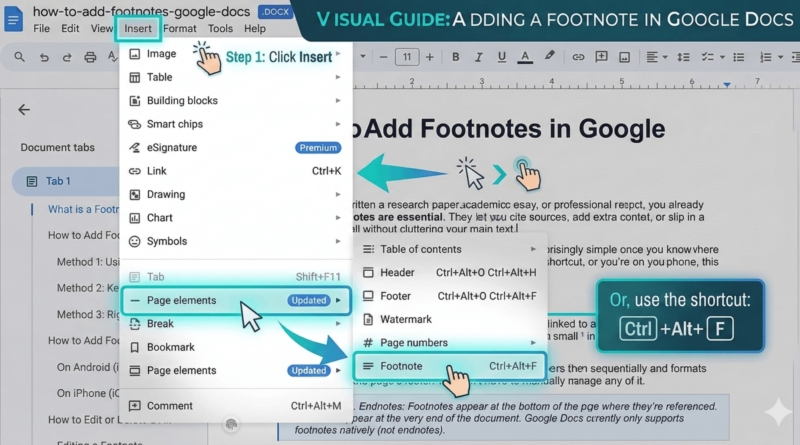
How to Add Footnotes in Google Docs
If you’ve ever written a research paper, academic essay, or professional report, you already know that footnotes are essential. They let you cite sources, add extra context, or slip in a clarifying note, all without cluttering your main text.
The good news? Adding footnotes in Google Docs is surprisingly simple once you know where to look. Whether you prefer using the menu, a keyboard shortcut, or you’re on your phone, this guide covers all the ways to add footernotes.
Table of Contents
What Is a Footnote in Google Docs?
A footnote is a note placed at the bottom of a page that’s linked to a specific point in your document via a superscript number. When a reader sees a small 1 in your text, they know to check the bottom of the page for more information.
Google Docs handles footnotes automatically and it numbers them sequentially and formats them cleanly at the page’s footer. You don’t have to manually manage any of it.
| Footnotes vs. Endnotes: Footnotes appear at the bottom of the page where they’re referenced. Endnotes appear at the very end of the document. Google Docs currently only supports footnotes natively (not endnotes). |
How to Add Footnotes in Google Docs on Windows
If you’re using Google Docs on a Windows PC (whether that’s Chrome, Firefox, or Edge), you have three easy ways to insert a footnote. Here’s each one in detail.
Method 1: Using the Insert Menu (Beginners)
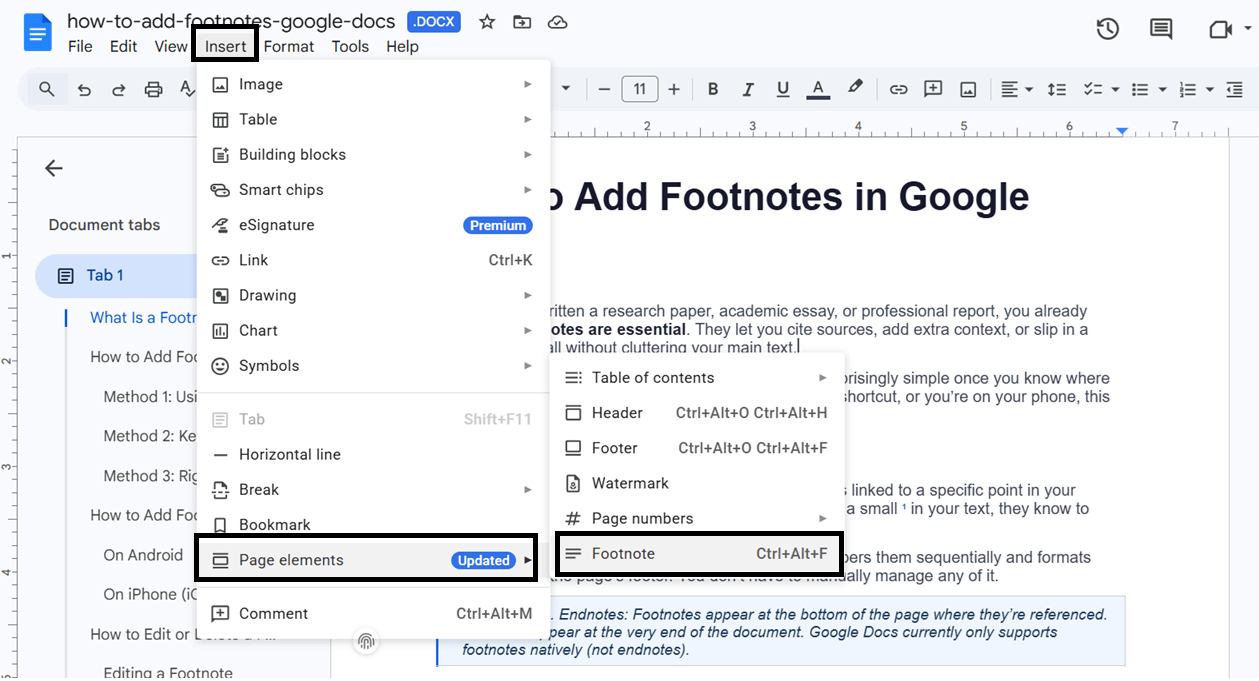
The Insert menu is the most visible and beginner-friendly way to add a footnote in Google Docs on a Windows computer.
| 1 | Open Google Docs in your browser Go to docs.google.com and open the document you’re working on. Make sure you’re in Editing mode (not Suggesting or Viewing mode). |
| 2 | Click where you want the footnote to appear Left-click in the body text at the exact spot you want the superscript footnote number — typically right after a word or at the end of a sentence. |
| 3 | Click “Insert” in the top menu bar Look at the menu bar at the top of the page and click Insert. A dropdown list will open. |
| 4 | Click “Footnote” Scroll down in the dropdown and click Footnote. Google Docs instantly places a superscript number in your text and moves your cursor to the footnote area at the bottom of the page. |
| 5 | Type your footnote text Your cursor is now in the footer. Type your citation or note. Click anywhere in the main body text when you’re done to return. |
Screenshot: Insert Menu → Footnote on Windows
| 💡 | Pro Tip: Google Docs automatically numbers your footnotes. If you add a new one between two existing ones, all the numbers update instantly — no manual renumbering needed. |
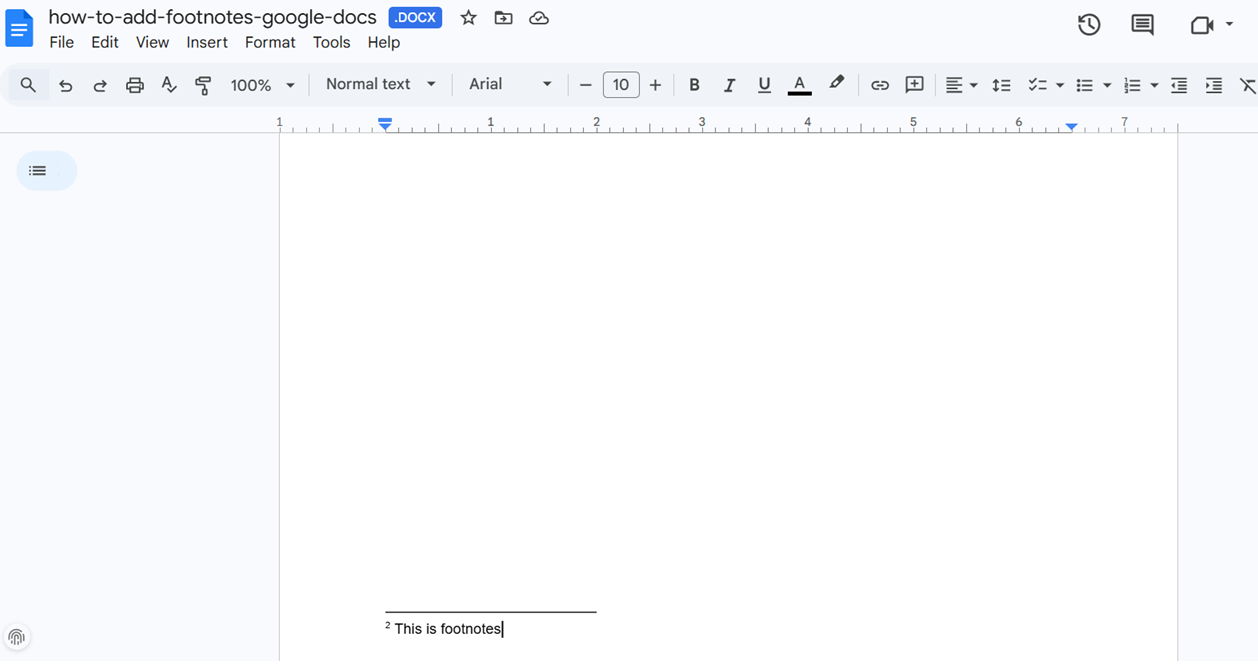
Method 2: Keyboard Shortcut — Ctrl + Alt + F (Fastest)
This is by far the fastest way to insert a footnote on a Windows computer. Once you know it, you’ll never go back to the menu.
| Windows / Chrome OS | Ctrl + Alt + F |
| Mac | ⌘ Cmd + ⌥ Option + F |
Place your cursor in the text, press Ctrl + Alt + F, type your footnote, and press Escape to jump back to where you were in the document. That’s it.
| 💡 | This shortcut works in Chrome, Firefox, and Edge on Windows. It’s the single fastest way to insert a footnote in Google Docs without breaking your writing flow. |
Method 3: Right-Click Context Menu
Did you know you can also insert a footnote with a simple right-click? This method is great when your hands are already on the mouse.
| 1 | Right-click at the position in your text Place your cursor where you want the footnote and right-click (or press the Menu key on your keyboard). A context menu will pop up. |
| 2 | Select “Insert footnote” In the context menu, click Insert footnote. Your cursor jumps instantly to the footnote area at the bottom of the page. |
Screenshot: Right-Click Context Menu on Windows
How to Add Footnotes in Google Docs on Mobile
Good news — the Google Docs mobile app fully supports footnotes on both Android and iPhone. The interface looks a little different from the desktop version, but the steps are just as simple.
On Android
Whether you’re on a Samsung, Pixel, or any other Android device, here’s exactly how to insert a footnote in Google Docs from your phone.
| 1 | Open the Google Docs app Tap the Google Docs app icon on your Android phone or tablet and open the document you want to edit. |
| 2 | Tap the pencil (✏️) icon to edit Tap the blue pencil icon in the bottom-right corner to switch into Editing mode. Without this, you’re in read-only view. |
| 3 | Long-press or tap to place your cursor Tap at the spot in your text where you want the footnote reference number. You’ll see a blinking cursor appear. |
| 4 | Tap the “+” Insert button in the toolbar Look at the top toolbar and tap the + (Insert) icon. A panel of insert options will slide up from the bottom. |
| 5 | Scroll down and tap “Footnote” In the insert panel, scroll down until you see Footnote. Tap it. Your cursor jumps to the footnote area. |
| 6 | Type your footnote text Use your on-screen keyboard to type the footnote. Tap anywhere in the main document body when you’re done. |
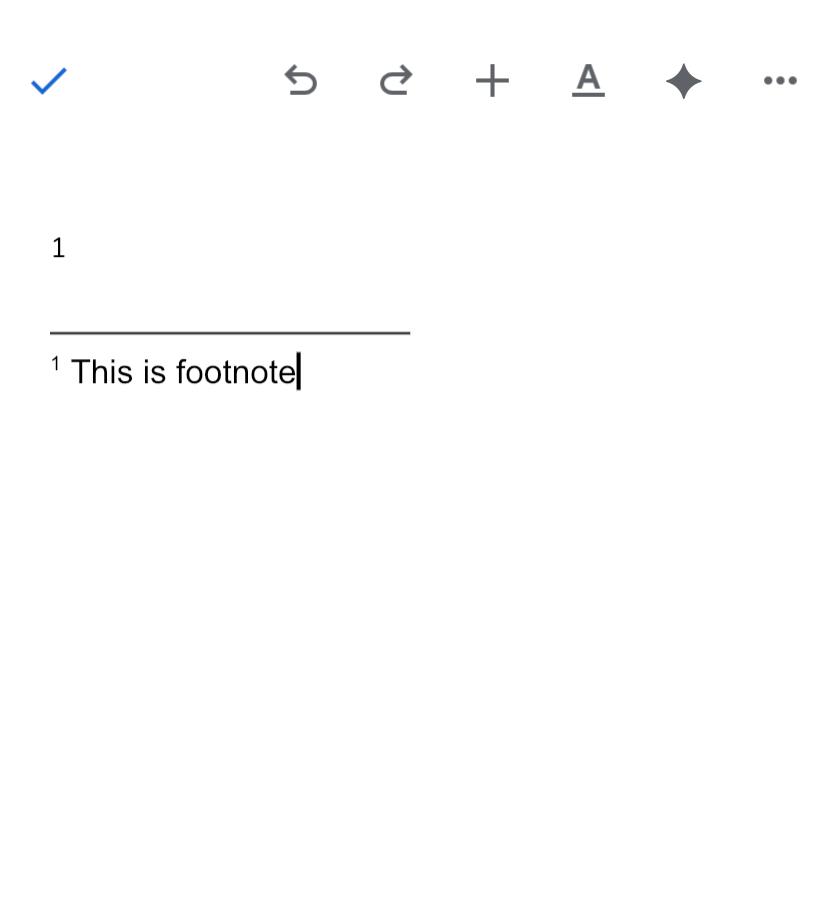
Screenshot: Google Docs Android App — Insert Footnote
↑ Android: Tap cursor position → Tap + button → Select Footnote → Type your note
| Mobile Tip: | Editing footnotes on a small screen can be fiddly — especially in long documents. For bulk footnote work, a Windows PC or Mac gives you much more control. Use mobile for quick additions on the go. |
On iPhone (iOS)
The steps on iPhone are nearly identical to Android, with just slight differences in where buttons appear. Here’s how to insert a footnote in Google Docs on your iPhone:

| 1 | Open the Google Docs app on iPhone Download Google Docs from the App Store if you haven’t already. Open the app and navigate to your document. |
| 2 | Tap the pencil icon to enter Edit mode Tap the blue pencil ✏️ in the bottom-right corner. The editing toolbar will appear at the top. |
| 3 | Tap in the text to place your cursor Tap in your document at the exact position where you want the footnote number to appear. |
| 4 | Tap the “+” icon or three-dot menu (⋮) On iPhone, look for the + Insert icon or the ⋮ More options in the top toolbar. Tap it to open the insert options. |
| 5 | Tap “Footnote” Scroll through the options and tap Footnote. Your cursor moves to the bottom of the page. |
| 6 | Type your footnote and tap Done Type your citation or note using the on-screen keyboard. Tap the checkmark or tap back in the document body to finish. |
Screenshot: Google Docs iPhone App — Insert Footnote
↑ iPhone iOS: Tap cursor → Tap + button → Select Footnote → Type note → Tap Done
Frequently Asked Questions
1. What is the keyboard shortcut to insert a footnote in Google Docs on Windows?
On Windows (and Chrome OS), press Ctrl + Alt + F simultaneously. On Mac, the equivalent is ⌘ Cmd + ⌥ Option + F. Your cursor instantly jumps to the footnote area — type your note, then press Escape to return.
2. Can I add footnotes in Google Docs on my phone (Android or iPhone)?
Yes! Open the Google Docs app, tap the pencil ✏️ icon to enter Edit mode, then tap in the document where you want the footnote. Tap the + (Insert) button in the toolbar, scroll to find Footnote, and tap it. Works on both Android and iPhone (iOS).
3. Can I add a footnote in Google Docs on a Chromebook?
Absolutely. The process is identical to any other desktop device. Use the Insert menu or the keyboard shortcut Ctrl + Alt + F.
4. Why can’t I find “Footnote” in the Insert menu?
This usually happens if you’re in Suggesting mode instead of Editing mode. Click the pencil icon in the top-right and switch to Editing mode, then try again.
5. Can I have footnotes start at a number other than 1?
Not natively in Google Docs. Footnotes always start at 1. For advanced footnote control, you’d need a third-party add-on from the Google Workspace Marketplace.
6. Do Google Docs footnotes print correctly?
Yes. When you print a Google Doc (File → Print), the footnotes appear at the bottom of their respective pages exactly as shown on screen.
7. Can I add a hyperlink inside a footnote?
Yes! Click inside your footnote text, then use Ctrl/Cmd + K to insert a hyperlink. This is great for citing online sources directly.